Important: Online registration requires an Oregon DMV number or the last four digits of your SSN.
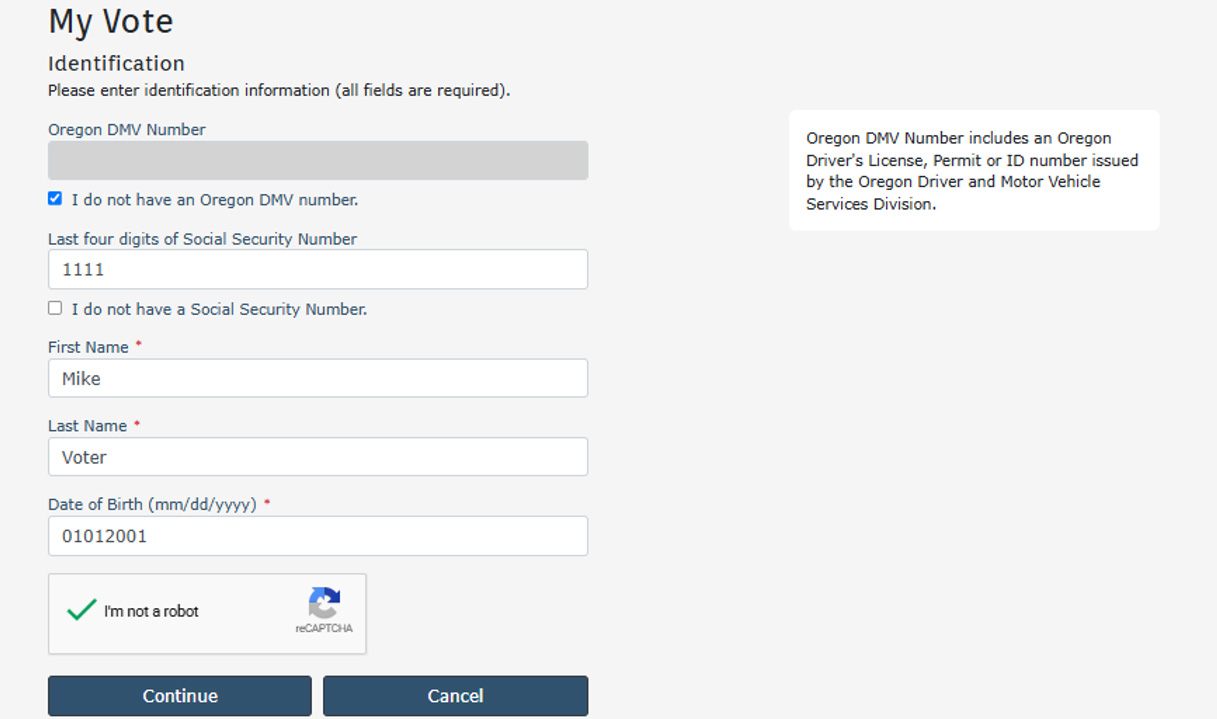
Section 1 – Identification
- Enter Oregon DMV number (Driver’s License or ID card) If you do not have an Oregon DMV number click the “I do not have an Oregon DMV number”
- Enter the last four digits of your SSN (If no DMV number is provided)
- Enter First Name
- Enter Last Name
- Enter Date of Birth
- Check box to indicate you are not a robot.
- Select the
Continue.
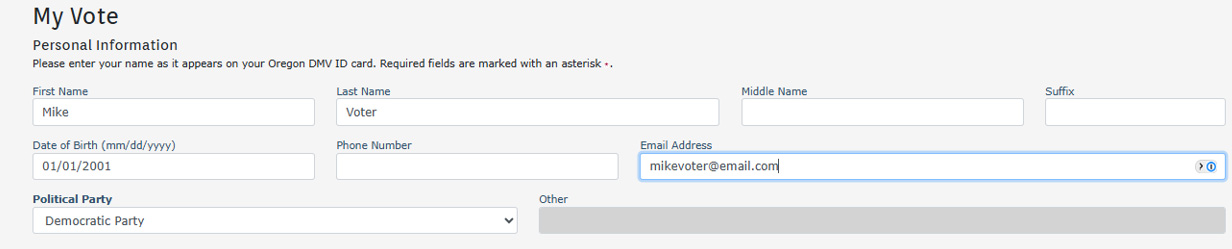
Section 2 – Personal Information - Your Name and Date of Birth will populate on the Personal Information page.
- Enter your email address. (optional)
Note for UOCAVA voters: Providing an email allows ballot-access instructions to be sent electronically. - Select a Political Party (optional)
- Enter your Oregon Residence Address
- Enter County of Residence

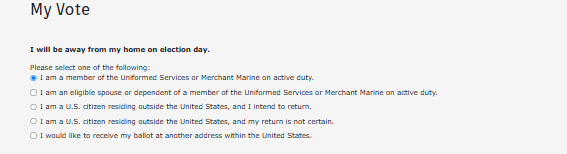
- Check "I will be away from my home on election day."
Note for UOCAVA voters: This step is required to ensure correct UOCAVA ballot delivery. - Select the
Continue.

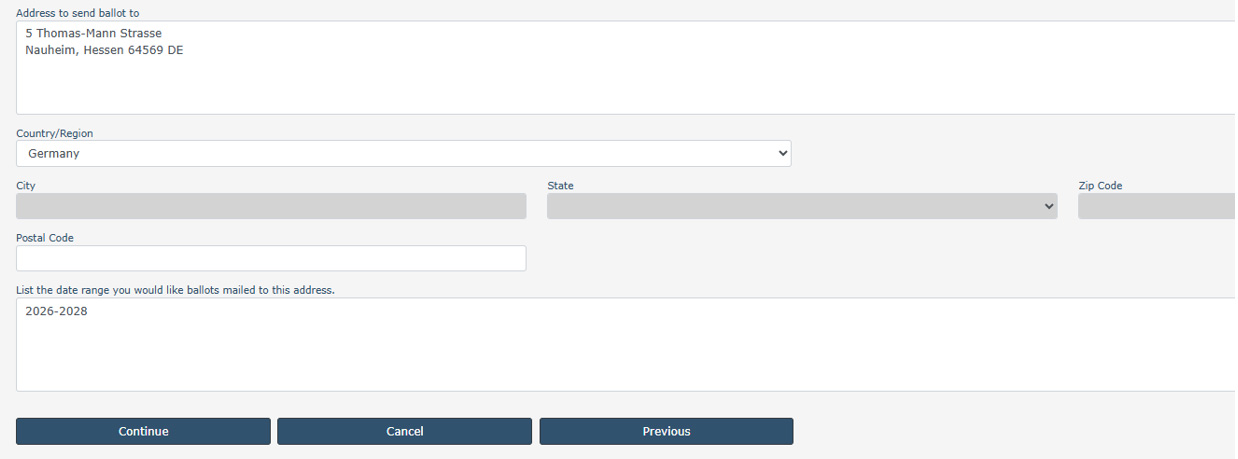
Section 3 – Absentee Information
Note for UOCAVA voters: The information on this page is required to ensure correct UOCAVA ballot delivery.
- Choose your absentee status (Military, Overseas, etc.).
- Enter the full address where your ballot should be sent.
- Provide the date range for your absentee ballot request.
- Enter the country associated with the absentee address.
- Include the date range for this request.
- Select the
Continue.
Section 4 – Signature
If you provided an Oregon DMV number, your signature will be retrieved automatically, you will not see this page.
- When registering with your SSN you must provide a signature.
- Select how you will provide your signature: draw it on your device or upload an image file.
- Select
Continue.
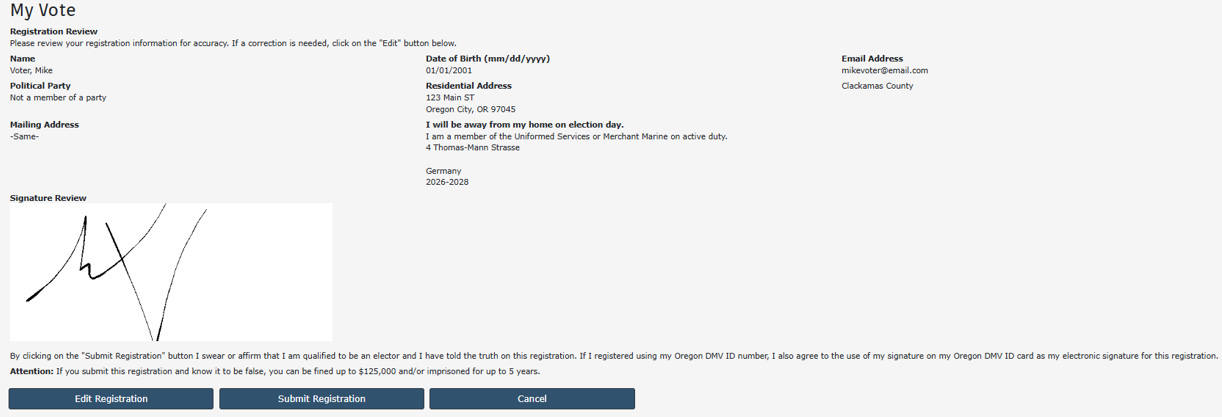
Section 5 – Registration Review
- Review all information carefully. If corrections are needed, select
Edit.
- Select
Submit Registration to complete your voter registration.